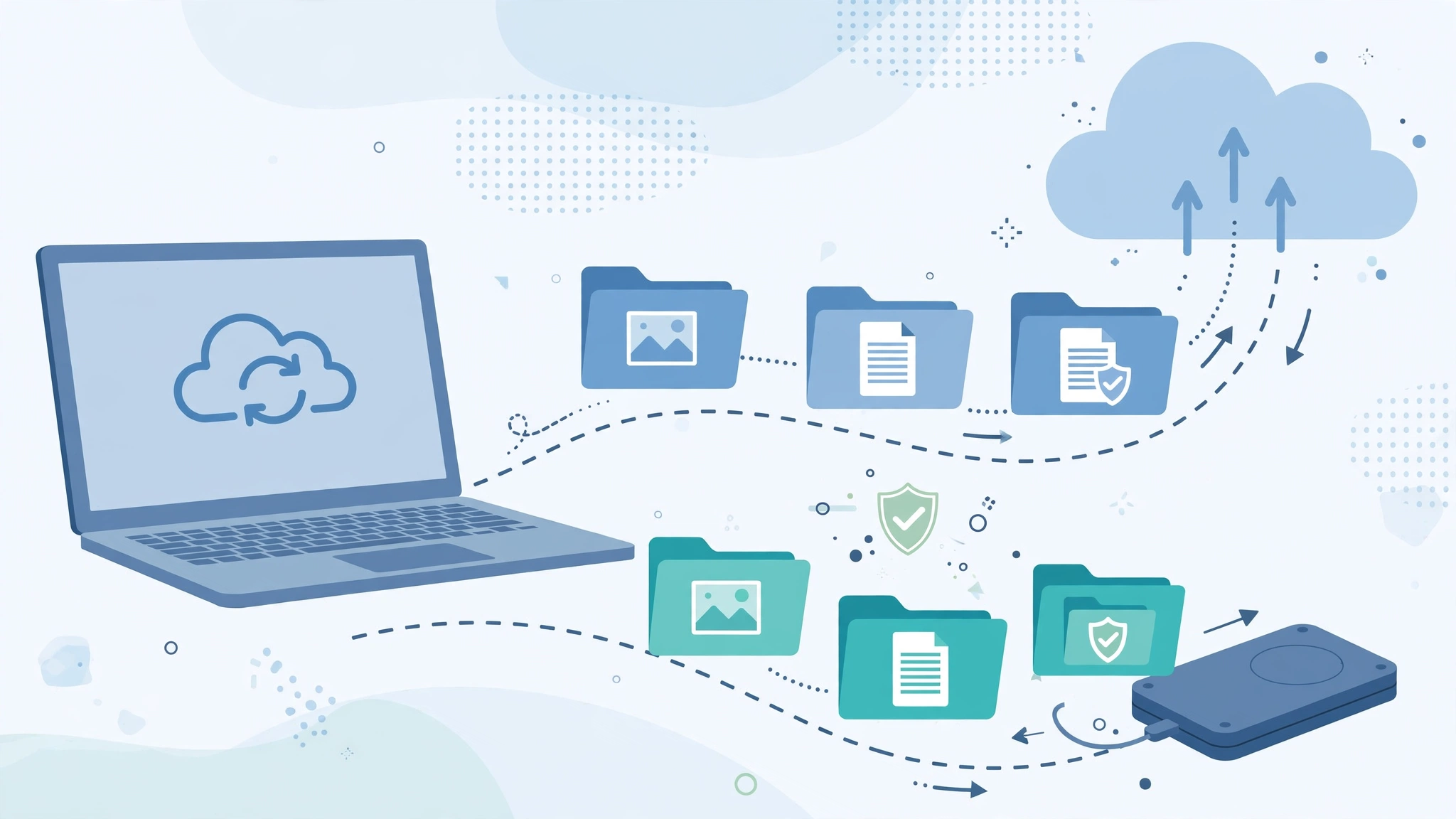
Every photo, document, and project you own exists on a device that will one day fail, get lost, or be stolen. The question is never whether you will lose data, but whether you will have a copy when it happens. Learning how to backup data properly is one of the highest-value tech skills there is, and it is far simpler than most people expect. This guide explains the proven 3-2-1 rule, the real differences between cloud and local backups, exactly what to back up and how often, and the common mistakes that leave people thinking they were protected when they were not.
Why Backups Matter More Than Ever
Data disappears in more ways than it used to. Hard drives and SSDs fail without warning, sometimes within their first years of life. Laptops are stolen from cars and cafes every day. Phones end up in rivers, washing machines, and the hands of toddlers. Then there are the modern threats: ransomware that encrypts everything it can reach, software bugs that corrupt files silently, and simple human error — the accidentally deleted folder is still the most common disaster of all.
The Real Cost of Losing Data
For businesses, lost data can mean lost customers, fines, and weeks of downtime; studies of small companies regularly find that a large share never fully recover from a major data loss. For individuals, the cost is measured differently but hurts just as much: years of family photos, university work, financial records, and creative projects that cannot be recreated at any price. A backup habit that costs a few pounds a month and an hour to set up protects against all of it. The right mindset is to assume every device you own will fail tomorrow, and make that failure boring instead of catastrophic.
The 3-2-1 Rule: The Gold Standard
Professionals have relied on one simple framework for decades: the 3-2-1 rule. Keep three copies of your data, on two different types of storage, with one copy stored off-site, away from your home or office.
How the Rule Works in Practice
Your working files on your computer are copy one. An external hard drive that you back up to regularly is copy two, on a different type of storage, so a single failure or fault cannot take both. A cloud backup service, or a drive stored at a relative’s house or in a safe deposit box, is copy three, off-site, so fire, flood, or burglary cannot destroy every copy at once. Some guides now extend the rule to 3-2-1-1-0, adding one offline or immutable copy that ransomware cannot encrypt, and zero errors, meaning you verify the backups actually restore. You do not need to memorise the extended version, but the spirit is right: one copy should be somewhere attackers and accidents physically cannot reach, and you should test it.
A Realistic Setup for Most People
Here is a setup that satisfies the rule without fuss. Turn on a cloud backup service that continuously copies your documents, desktop, and photos. Plug in an external drive once a week, or leave it connected to a docking routine, for a full local backup using your computer’s built-in tool: Time Machine on a Mac or File History and system image tools on Windows. Keep phone photos syncing to a cloud photo library. That combination gives you speed for everyday restores from the local drive, and survival of a house-level disaster from the cloud copy.
Cloud Backup vs Local Backup
Cloud and local backups are not rivals; they cover each other’s weaknesses. Local backups to an external drive are fast, cheap for large volumes, and work without an internet connection. Restoring a whole computer from a local drive takes a fraction of the time of downloading it. But a drive sitting next to your computer shares its fate in a fire or burglary, and a drive left permanently connected can be encrypted by the same ransomware that hits the computer.
What the Cloud Does Better
Cloud backup services copy your files to professionally run data centres, automatically, continuously, and off-site by design. Good services keep multiple previous versions of files, so you can recover the document as it was last Tuesday, before you overwrote it or malware encrypted it. The trade-offs are cost, which is usually a modest monthly subscription per computer, and speed: your first backup of a large photo library can take days on a slow connection, and a full restore is limited by your download speed. There is also a privacy question to check: look for services that encrypt your files, ideally with a private key only you hold, so even the provider cannot read them. Businesses increasingly lean on AI automation in this area too, using automated monitoring that verifies backups completed, flags failures instantly, and tests restores on a schedule instead of relying on someone remembering.
Sync Is Not Backup
The most dangerous misunderstanding in this whole topic: services like Google Drive, Dropbox, OneDrive, and iCloud Drive are primarily sync tools. Sync is brilliant for working across devices, but it faithfully syncs deletions and corruption too. Delete a folder on your laptop and it vanishes everywhere; ransomware encrypts a synced folder and the encrypted versions replace the good ones in the cloud. Most sync services keep a recycle bin and limited version history, which saves people often, but that safety net is thinner and shorter than a true backup. Use sync for convenience by all means, but pair it with at least one real backup that keeps independent, dated copies.
What to Back Up and How Often
Back up anything you cannot easily recreate. That means documents, spreadsheets, and financial records; your photo and video library; email archives you rely on; creative work and code; scans of important paperwork; and the data inside apps you use daily, from accounting software to password manager vaults. You generally do not need to back up applications themselves or your operating system installation, since those can be reinstalled, although a full system image makes recovering a work computer much faster.
Matching Frequency to Value
Ask one question for each type of data: how much work can I afford to redo? If losing a day of documents would hurt, back up daily or continuously, which cloud services handle automatically. Photos deserve continuous sync because new ones appear daily and cannot be retaken. A weekly local drive backup is a sensible rhythm for most home users, tightened to daily for anyone whose income depends on their files. Whatever schedule you choose, automate it. A backup that depends on you remembering is a backup that will be three months out of date on the day you need it.
Step by Step: Setting Up Your Backup Today
Step one: take inventory. Find where your important files actually live, including the ones stranded on your phone, an old laptop, and inside app folders, and gather them into known locations. Step two: choose a cloud backup service, install it, and let the first full backup run, overnight if needed. Step three: buy an external drive at least twice the size of your computer’s storage, set up your system’s built-in backup tool, and complete the first local backup. Step four: turn on photo backup on your phone and check the photos appear in the cloud library from another device. Step five: store the external drive somewhere sensible, ideally in a different room or building, and set a recurring reminder for your backup day if it is not fully automatic.
Test Your Backups — The Step Everyone Skips
A backup you have never restored from is a hope, not a backup. Once your system is running, pick a few files and actually restore them: download an older version of a document from the cloud, and recover a deleted test file from the external drive. Repeat this quick test every few months, and after any big change such as a new computer. Testing takes five minutes and is the only way to discover a silent failure, a forgotten password, or an expired subscription while the discovery is still cheap.
Common Backup Mistakes to Avoid
The classics are worth listing plainly. Backing up to the same drive your files live on, including a second partition, protects against nothing except accidental deletion. Leaving the backup drive permanently connected exposes it to the same ransomware and power surges as the computer. Backing up once and forgetting it means your newest year of photos is unprotected. Assuming sync equals backup, as covered above, catches out thousands of people a year. And storing the only copy of family photos on a single phone, or business records on a single laptop, remains the most common mistake of all. Every one of these is fixed by the 3-2-1 rule and an hour of setup.
Backing Up Your Phone and Photos
For many people the phone, not the computer, now holds the data that matters most: the camera roll, message history, and the authenticator apps that guard every account. Both major phone platforms offer automatic cloud backup of settings, apps, and messages, but check the details rather than assuming. Photo libraries deserve special attention because they grow relentlessly and are often too big for the free tier of cloud storage. If your photos matter, pay for enough cloud space for the full library at original quality, or regularly import them to your computer where your normal 3-2-1 system protects them. While you are there, export a copy of your password manager vault and store it in your backup set, and save your two-factor authentication recovery codes somewhere safe and offline. Losing a phone is annoying; losing the keys to every account because the codes lived only on that phone is a crisis your backup plan should prevent.
Frequently Asked Questions
How much storage do I need for backups?
For a local drive, buy at least twice the capacity of the storage you are backing up, so the drive can hold your current files plus older versions and history. For cloud backup, most services offer unlimited or multi-terabyte plans per computer, so simply make sure your plan covers your total data with room to grow.
Is cloud backup safe and private?
Reputable services encrypt your files in transit and at rest, and the best offer private encryption keys that only you control, meaning nobody at the company can read your data. Use a strong, unique password and two-factor authentication on the account, since your backup account is effectively a key to everything you own.
How often should I test my backups?
Do a small test restore every three to six months, and whenever you change computers, drives, or backup services. Restore a handful of files of different types — a photo, a document, and an older version of a file — and open them to confirm they are complete and readable.
The Bottom Line
Good backups are not complicated: keep three copies of what matters, on two kinds of storage, with one copy off-site, and automate the whole thing. Add a quick restore test a few times a year and you have turned the worst day in computing — the day a drive dies or ransomware strikes — into a minor inconvenience. Set it up once, today, and then get on with your life knowing your files can survive almost anything. It is the cheapest insurance in all of technology, and the only one you will certainly be glad you bought.