Be honest: how many of your online accounts share the same password, or a close variation of it? If the answer is “most of them,” you are in the majority — and in real danger. The average person juggles dozens of logins, and human memory simply cannot invent and retain a different strong password for each one. So we reuse, we simplify, and we hope. Attackers count on exactly that hope. A password manager solves the problem at its root: it creates a unique, random, strong password for every account you own, remembers all of them, and fills them in for you — while you memorise just one master password. This guide explains how password managers work, why they are safer than the alternatives, and how to start using one in an afternoon.
The Problem: Password Reuse Is a Loaded Domino
Data breaches are no longer rare events; they are background noise. Billions of email addresses and passwords from breached websites circulate in collections that criminals buy, sell, and test automatically. The attack that follows is called credential stuffing: software tries your leaked email and password combination on hundreds of other sites — banks, email providers, shopping accounts — in seconds. If you reused that password, one breach at a forgotten forum can cascade into your email, and from your email, password resets unlock almost everything else. It is a row of dominoes, and reuse is what lines them up.
The uncomfortable truth is that “strong” reused passwords are still weak in practice, because strength does not matter once the password itself has leaked. Uniqueness is what protects you, and uniqueness at scale is exactly what human memory cannot deliver. That gap between what security requires and what people can remember is the gap a password manager fills.
What Is a Password Manager?
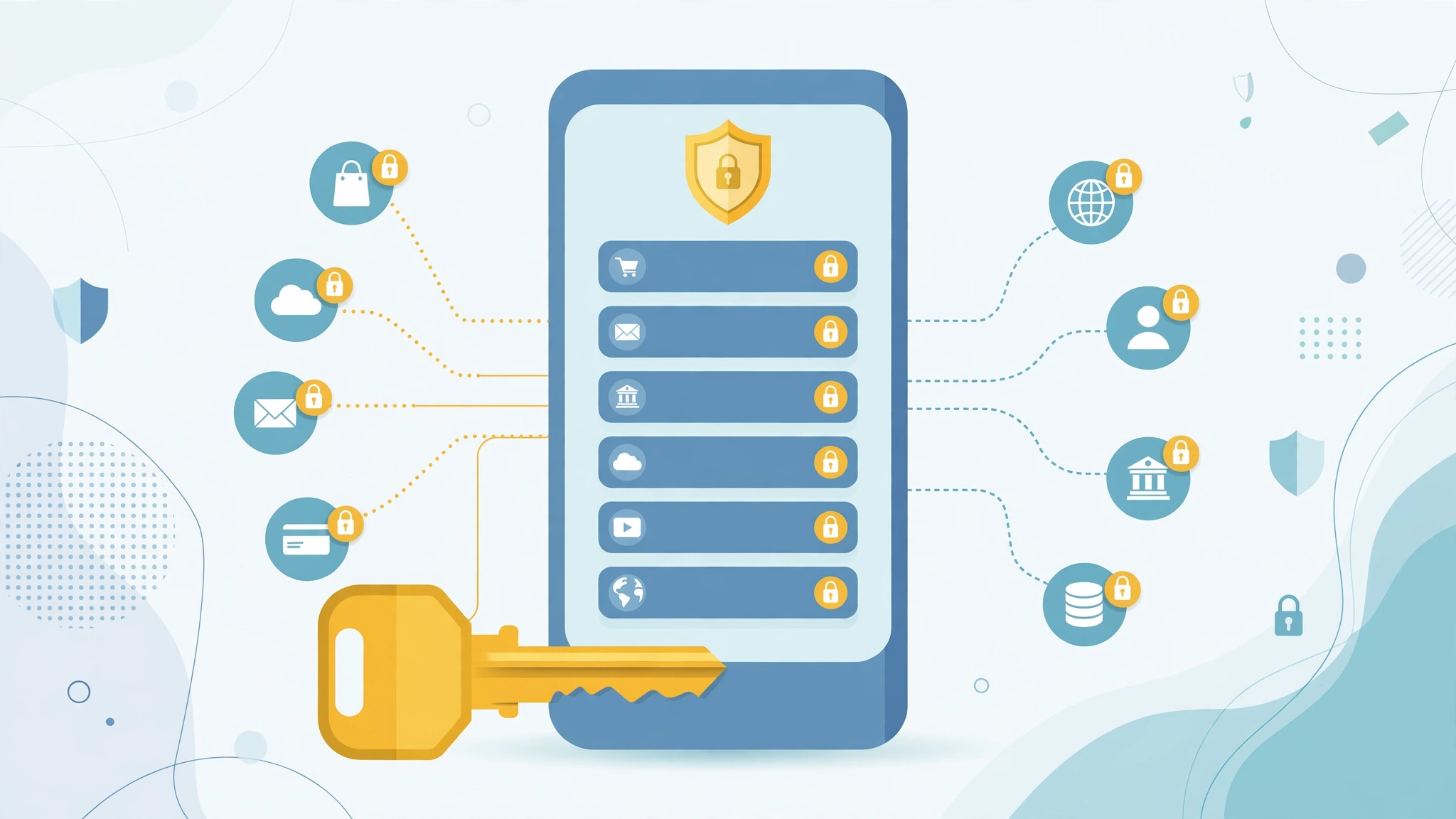
A password manager is an app that stores all your logins in an encrypted vault. You unlock the vault with one master password (often plus your fingerprint or face), and the manager handles everything else: generating random passwords like K7#vQm2!zLp9$xR that no human would invent or remember, saving new logins as you create them, and auto-filling your credentials on websites and in apps. Good managers work across your phone, computer, and browser, syncing the encrypted vault between them so your passwords are available wherever you need them.
Popular options include Bitwarden, 1Password, Dashlane, and the password managers built into Apple, Google, and Microsoft platforms. The built-in ones have improved enormously and are a fine starting point; dedicated apps add features like secure sharing, breach monitoring, and better cross-platform support. The best password manager is ultimately the one you will actually use — any reputable option is vastly safer than reuse.
How Does a Password Manager Keep You Safe?
Encryption Protects the Vault
Your vault is encrypted on your device using your master password as the key, with strong modern encryption. The company’s servers store only the scrambled vault — a design called zero-knowledge, because even the provider cannot read your passwords. If their servers were breached, attackers would get encrypted blobs that are useless without each user’s master password. This is why your master password must be strong: it is the one key to the kingdom, and the system is designed so that nobody, including the company, can reset it for you if you forget it.
Unique Passwords Contain Breaches
With a manager, a breach at one site exposes exactly one random password for that site only. There is nothing to stuff anywhere else. You change that single password and move on. The dominoes are never lined up in the first place.
Auto-Fill Defeats Lookalike Sites
A subtle benefit: password managers fill credentials only on the genuine website domain they were saved for. If a phishing link takes you to a convincing fake bank page, the manager will not offer to fill your password — a warning sign many people have learned to heed. Humans are easily fooled by lookalike pages; the manager checks the address mechanically, every time.
Choosing Your One Master Password
Since you only memorise one password now, make it excellent. The best approach is a passphrase: four or five random words strung together, such as lantern-river-clockwork-meadow, ideally with a number or symbol mixed in. Length beats complexity for resisting guessing attacks, and a passphrase is far easier to type and remember than a short jumble of symbols. Write it down on paper and store that paper somewhere physically secure at home while you are learning it — a note in a drawer is a much smaller risk than the reuse it replaces. Then protect the vault further by turning on two-factor authentication for the password manager account itself, so a stolen master password alone is still not enough.
Getting Started in an Afternoon
- Choose a manager. A reputable dedicated app or your platform’s built-in option are both fine. Install it on your phone and computer and add the browser extension.
- Create your account and master passphrase. Set up two-factor authentication immediately, and save the recovery information somewhere safe.
- Add your most important accounts first. Start with email — the keys to all your password resets — then banking and finance, shopping, and social media. Do not try to do everything at once.
- Change reused passwords as you go. When you save each important account, use the manager’s generator to replace its password with a unique random one. This step is where the real protection comes from.
- Work through the rest gradually. Every time you log into any other site over the following weeks, save it and update its password. Within a month or two, your whole digital life is covered without a single marathon session.
This gradual approach matters. People abandon security projects that demand an entire weekend; a manager adopted in small steps sticks, in the same way businesses succeed with AI automation by starting with one workflow rather than everything at once.
Common Worries, Answered Honestly
“Isn’t putting all my passwords in one place risky?”
It feels counterintuitive, but compare the alternatives: reused passwords (one breach unlocks everything), a notebook (lost, copied, or read by anyone in the house), or a spreadsheet (unencrypted and synced who-knows-where). An encrypted, zero-knowledge vault protected by a strong passphrase and two-factor authentication is stronger than all of them. You are concentrating your passwords, yes — inside a safe, rather than scattering them across sticky notes.
“What if I forget my master password?”
Then, by design, the provider cannot unlock your vault — that is what makes the system trustworthy. Most managers offer account recovery options set up in advance, such as recovery keys or a trusted family member. Save your recovery key on paper with your master password note, and the risk becomes very small.
“What if the password manager company gets hacked?”
This has happened in the industry, and it is precisely why the zero-knowledge design matters: what attackers steal is encrypted vaults, and users with strong master passphrases remained protected. It is also a reason to choose established providers with independent security audits, and to keep two-factor authentication on.
Pair It with Two-Factor Authentication
A password manager handles what you know; two-factor authentication (2FA) adds something you have. With 2FA enabled, signing in requires your password plus a one-time code from an authenticator app or a prompt on your phone, so a password that somehow leaks is still not enough to break in. Turn it on first for your email, your banking, and the password manager itself, then add it everywhere else that offers it over time. Many managers can store these one-time codes for convenience, though keeping codes for your most critical accounts in a separate authenticator app adds one more independent layer. Think of it this way: unique passwords make each account a separate locked door, and 2FA adds a guard standing at the important ones. Together, they stop the overwhelming majority of real-world account takeovers — which are almost never the work of genius hackers, just criminals testing leaked passwords at scale.
Extra Features Worth Using
Modern managers do more than store logins. Many monitor breach databases and warn you when one of your accounts appears in a leak. Secure notes can hold passport numbers, Wi-Fi codes, and software licences. Family plans let you share selected logins — the streaming service, the smart lock — without revealing the actual password, and revoke access later. Some store passkeys, the newer phishing-resistant sign-in method that is gradually replacing passwords altogether; when a site offers you a passkey, saving it in your manager is the smoothest path into that future.
Password Managers for Families and Small Teams
Once you are set up, a password manager quietly improves life for the people around you too. Family plans typically give each person their own private vault plus shared folders for the logins a household genuinely shares — streaming services, the home Wi-Fi, utility accounts, the smart door lock. Instead of texting passwords back and forth (a habit that leaves them sitting in message histories forever), you share once, securely, and can update or revoke access at any time. If a relative is locked out of an account they saved in the family vault, you can help them recover in minutes rather than spending an evening on hold with support lines.
The same logic applies to small teams and businesses, where shared logins for social media, suppliers, and tools are usually scribbled in documents anyone can open. A business password manager gives each employee their own vault, lets managers share credentials without revealing them, and — critically — removes access instantly when someone leaves, instead of changing a dozen passwords and hoping nothing was missed. For households and companies alike, the pattern is identical: one secure system replaces a tangle of sticky notes, spreadsheets, and messages, and everyone ends up both safer and less frustrated. If your family shares even a handful of accounts, this alone can justify the small cost of a family plan.
Frequently Asked Questions
Are free password managers good enough?
Often, yes. Reputable free tiers, such as Bitwarden’s, offer unlimited passwords and syncing with the same encryption as paid plans; paid tiers mainly add sharing, breach reports, and support. The built-in managers from Apple and Google are also free and secure. What matters is using one at all, not which tier you pay for.
Should I use my browser’s built-in password saving?
It is far better than reuse or a notebook, and for many people it is a perfectly good start. Dedicated managers add stronger cross-platform support, sharing, breach monitoring, and passkey management. If you live entirely inside one ecosystem, the built-in option may be all you need; if you mix devices and platforms, a dedicated app is smoother.
How long should my passwords be?
Let the generator decide: 16–20 random characters is a strong default for most accounts, and since you never type or memorise them, there is no downside to length. For your master passphrase, aim for at least four random words. Length is the simplest, most effective defence against guessing.
The Bottom Line
A password manager removes the impossible burden of remembering dozens of strong passwords by asking you to remember exactly one. In return you get unique credentials for every account, breach damage contained to a single site, protection against lookalike phishing pages, and calmer mornings. Pick a reputable manager today, secure your email and banking first, and change reused passwords as you go. Within a few weeks, the weakest part of your online security will quietly become one of the strongest.