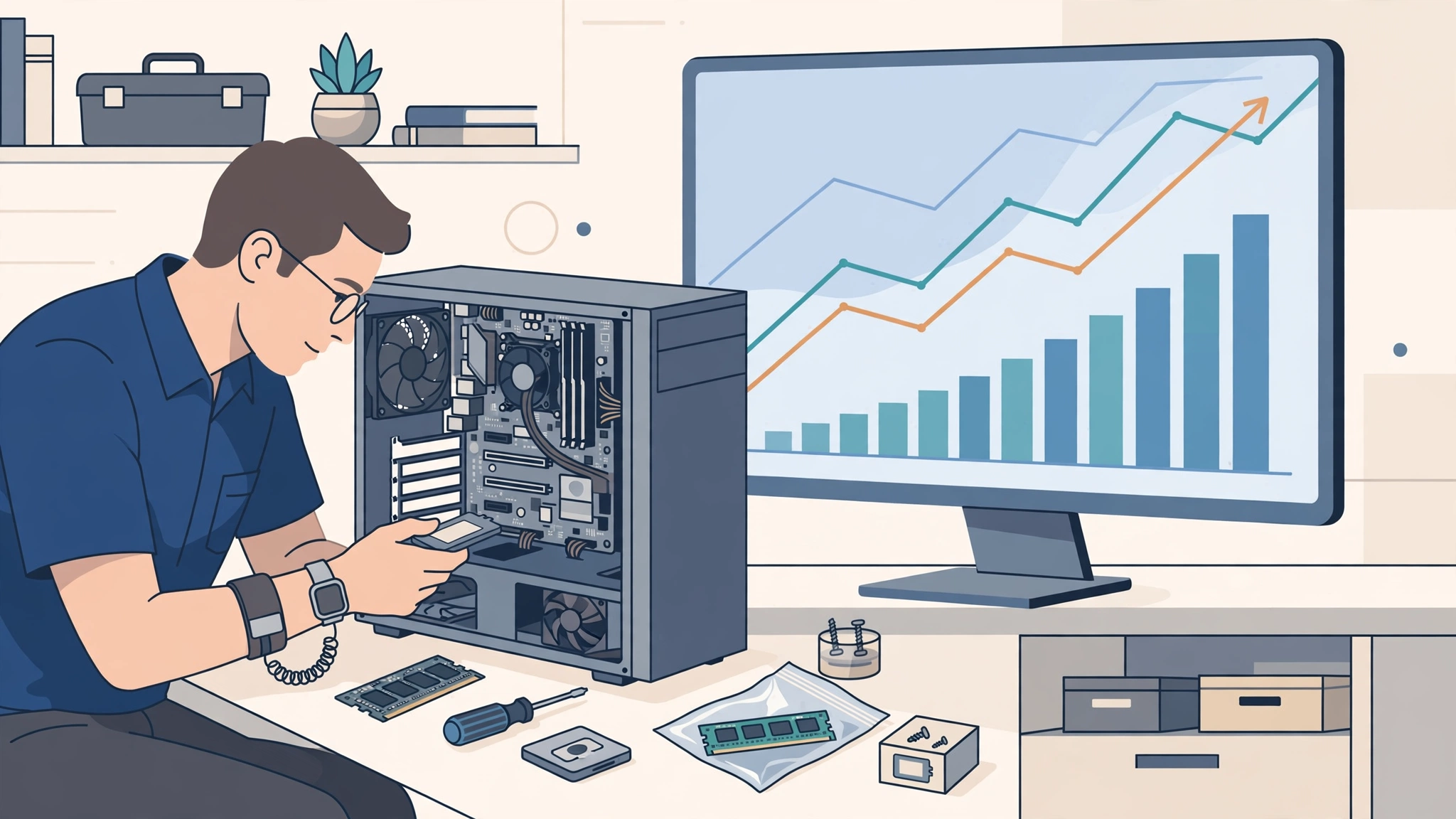
Few everyday frustrations match a computer that takes five minutes to wake up, stutters when you open a browser tab, and spins its little loading wheel at the worst possible moment. The natural assumption is that the machine is simply old and needs replacing. Sometimes that is true — but far more often, a slow computer is a clogged, overloaded, or poorly maintained computer, and most of the fixes are free. This guide explains how to speed up slow computer performance step by step, starting with the quickest wins and ending with the two hardware upgrades that genuinely transform an ageing machine. Work through the steps in order, and test as you go: you may find your “old” computer has years of life left in it.
First, Understand Why Computers Slow Down
Computers rarely get slower because the hardware wears out. Instead, they accumulate burdens: more programs fighting to start at once, a hard drive filled to the brim, dust choking the cooling fans, background software quietly consuming memory, and occasionally malware doing all of the above on purpose. Modern operating systems also grow heavier with each major update, asking more of the same hardware. The encouraging part of this diagnosis is that almost every cause on that list is reversible. The steps below tackle them one by one.
Step 1: Restart — and Check for Updates
It sounds too simple, but a full restart clears temporary memory, closes processes that have been running for weeks, and lets pending updates finish installing. Many people only ever sleep their laptops, so a genuine restart can be surprisingly effective. While you are at it, open your system settings and install any waiting operating system and driver updates. Updates frequently include performance fixes and security patches, and a half-installed update sitting in the background is itself a common cause of sluggishness.
Step 2: Stop Programs from Launching at Startup
The single biggest cause of slow boot times is the crowd of applications that insist on launching the moment you log in: chat apps, game launchers, cloud tools, printer utilities, and updaters for software you barely use. Each one steals startup time and then sits in memory all day.
On Windows
Press Ctrl + Shift + Esc to open Task Manager, open the Startup tab, and review the list. Disable anything you do not need in the first minute of your day — you can always open those programs manually later. The “Startup impact” column helps you spot the worst offenders.
On a Mac
Open System Settings, go to General, then Login Items, and remove applications that do not need to open at login. Also check the “Allow in the Background” list below it and switch off anything unnecessary.
Be conservative: leave security software and essential drivers alone. But most people find five to ten items they can disable safely, and the difference at startup is immediate.
Step 3: Free Up Storage Space
A nearly full drive slows a computer dramatically, because the operating system needs free space for temporary files and virtual memory. Aim to keep at least 15–20 percent of your drive empty. Start with the built-in tools: on Windows, Disk Cleanup and Storage Sense find temporary files, old downloads, and recycle bin clutter; on a Mac, the Storage section of settings shows what is consuming space and suggests optimisations. Then look at your own files honestly — old videos, duplicate downloads, and installers for long-deleted programs are usually the biggest space hogs. Move large archives to an external drive or cloud storage, and uninstall games and applications you have not opened in a year. This step alone revives many machines that seemed ready for the scrap heap.
Step 4: Uninstall Software You Do Not Use
Pre-installed trial software, duplicate antivirus tools, browser toolbars, and forgotten utilities all consume resources even when you never open them, because many run background services. Go through your installed applications list and remove anything you do not recognise as useful. If you are unsure what something is, search for its name before deleting — but do not let uncertainty preserve obvious bloatware. One warning: running two antivirus programs at once is a classic hidden cause of slowness, since they constantly scan each other. Keep one good security tool, not two.
Step 5: Scan for Malware
Malicious software is designed to use your computer for someone else’s purposes — mining cryptocurrency, sending spam, or displaying adverts — and it does so at the direct expense of your performance. If your computer slowed down suddenly, fans roar for no reason, or your browser homepage keeps changing, run a full scan with your built-in security tool (Windows Security or your Mac’s built-in protections) and consider a second opinion from a reputable free scanner. Removing an infection can restore performance overnight, and it protects your accounts and files at the same time.
Step 6: Lighten the Load While You Work
Some slowdowns happen only while you work, and they are about habits as much as hardware. Browsers are the worst offenders: fifty open tabs can consume several gigabytes of memory, and each extension adds its own overhead. Remove extensions you do not use, and consider a tab suspender if you are a chronic tab hoarder. In Task Manager or Activity Monitor, sort by memory or CPU to find which application is really eating your resources — it is often not the one you suspect. Closing or replacing one greedy app can make the whole system feel new. Cloud sync tools pausing during big uploads, and video calls running alongside heavy software, are also worth checking before blaming the machine.
Step 7: The Two Upgrades That Actually Matter
If software fixes are not enough, two hardware upgrades deliver far more than any others, and both are usually cheaper than a new computer.
Replace a Hard Drive with an SSD
If your computer still uses a traditional spinning hard drive (HDD), upgrading to a solid-state drive (SSD) is the single most dramatic improvement you can make. Boot times drop from minutes to seconds, programs open almost instantly, and the whole system feels responsive again. This upgrade alone has rescued countless laptops from replacement.
Add More RAM
Random access memory (RAM) is your computer’s working space. With too little, the system constantly shuffles data to the much slower storage drive. If your machine has 4 GB of RAM, upgrading to 8 GB or 16 GB makes multitasking dramatically smoother. Check your model’s maximum supported memory and type before buying; on some slim modern laptops the RAM is soldered and cannot be upgraded, which is worth knowing before you start.
Beyond these two, manage expectations: a new processor or graphics card rarely makes sense in an old machine, and on laptops is usually impossible. Money spent there is better saved toward a replacement.
One more physical fix costs nothing: dust. Blocked vents and dusty fans make computers overheat, and overheating computers deliberately slow themselves down to stay safe. A gentle clean of external vents with compressed air can restore lost performance, especially on older desktops and laptops.
A Quick Word About Browsers and Battery Saver Modes
Two smaller settings deserve a mention because they surprise people. First, hardware acceleration in your browser: this feature lets your graphics chip help render pages and video, and while it usually helps, on some older machines it causes stuttering and freezes instead — toggling it off in the browser settings is a two-minute experiment worth trying if videos and scrolling feel choppy. Second, power settings quietly throttle performance: a laptop locked into a battery-saver or “best power efficiency” mode will deliberately run its processor below full speed, even while plugged in. Switching to a balanced or best-performance plan when you are at your desk can unlock speed you already own. Neither fix is glamorous, but both are free, reversible, and exactly the kind of hidden setting that separates a frustrating machine from a responsive one.
When It Really Is Time to Replace
Sometimes the honest answer is a new machine: if the computer cannot run a supported operating system, if repairs cost more than half its value, or if even an SSD and RAM cannot meet your needs, replacement is the sensible spend. But run through this guide first. A remarkable number of “dead” computers simply needed startup programs trimmed, storage freed, and one affordable SSD. Small businesses apply exactly this logic at scale, pairing sensible hardware maintenance with AI automation to squeeze more life and productivity out of the equipment they already own.
Step 8: Reset or Reinstall as the Last Resort
If you have worked through every step and the computer still crawls, a clean start may be the answer. Years of accumulated software, half-removed programs, and tangled settings can reach a point where untangling them takes longer than starting fresh. Both Windows and macOS offer a reset option that reinstalls the operating system while letting you keep your personal files, and a full clean installation goes one step further for a truly blank slate.
Treat this as surgery, not a first response, and prepare properly. Back up everything important — documents, photos, browser bookmarks, and any licence keys — to an external drive or cloud storage, and make a list of the programs you will need to reinstall. After the reset, reinstall only what you genuinely use, and resist the urge to restore every utility “just in case”; that restraint is what keeps the fresh system fast. Set up your startup programs deliberately this time, enable automatic updates, and schedule a light monthly tidy: clear downloads, check storage, and review what launches at login. Ten minutes of maintenance a month is what separates a computer that stays quick for years from one that slowly clogs itself back into frustration.
One caution: if a computer is still slow immediately after a clean reinstall with nothing added, the problem is almost certainly hardware — a failing drive, a dying fan, or a machine that has genuinely reached its limits. At that point you have your answer, and you can replace it knowing the decision was earned rather than guessed.
Frequently Asked Questions
Why is my computer so slow all of a sudden?
A sudden slowdown usually has a specific cause: a stuck or newly installed update, a program that began launching at startup, a nearly full drive, overheating from blocked vents, or malware. Think about what changed just before the slowdown — a new installation or update is the prime suspect — and run a malware scan to be safe.
Will adding RAM or an SSD make the bigger difference?
For most older computers, the SSD comes first: if you still have a spinning hard drive, it is almost certainly your biggest bottleneck, and replacing it transforms boot and loading times. Add RAM second if you regularly run out of memory with many programs open. Together, the two upgrades make most machines feel years younger.
Do “PC cleaner” programs actually work?
Mostly they repackage what your operating system already does for free, and some aggressive registry cleaners cause more harm than good. A few reputable tools are harmless conveniences, but you do not need to pay for one: the built-in storage tools, startup controls, and uninstallers in Windows and macOS cover everything in this guide.
The Bottom Line
Learning how to speed up slow computer performance is mostly about removing accumulated burdens rather than buying new hardware. Restart and update, trim startup programs, free up storage, uninstall bloat, scan for malware, and keep an eye on greedy applications. If the machine still struggles, an SSD and a RAM upgrade deliver genuine transformation for a fraction of a replacement’s cost. Work through the steps in order and you will likely discover your computer was never old — just overloaded.